Ubiquity: New Web Tool that Makes Sense

The guys over at mozilla labs are at it again. They have just released a prototype of Ubiquity, a Firefox extension that allows you to perform tasks using various web services without having to leave the page your on.
Scenario:
You are writing an email to a friend to give him directions to a place. Normally you would have to open another page, map the address on a map site, copy the link and then return to your email page and paste it. But he stills has to open your email, click the link which will open another page, and then finally see the directions.
Now let's see how this gets done using Ubiquity:

Ubiquity for Firefox from Aza Raskin on Vimeo.


Must-Have Windows Mobile Apps List

If you own a Windows Mobile Device you have to check lifehacker's article. There is no way you won't find something in there. Make sure you read the comments, they have more sites and apps too!


Boxee Just Released a New Version of the Alpha

If you've been trying out Boxee, this is news for you. The new release has a HUGE list of new stuff and bug fixes. I've been running Boxee for a few weeks now and I have to say: "Pretty Nice!".
Check it out, if you need an invite I still have some. For more info, head over to the boxee blog or read lifehacker's article on this bad boy.


Come Join me for Blog Action Day


Blog Action Day 2008 Poverty from Blog Action Day on Vimeo.

I will be participating in Blog Action Day on October 15th, which focuses on the issue of poverty this year. If you guys have any ideas about what I should write, leave me a comment or email. I want to also encourage my fellow bloggers to participate in this event, it's for a good cause.


How to Add Your Miro Content to Boxee

If you use Miro as your TiVo for Internet Video and the previously mentioned Boxee, read on.
I have Miro installed on my Mac Mini and I've been using it for a while now. Miro has a lot of video content and the coolest factor(for me) is that you can create dynamic, keyword-based channels. For example: I have a YouTube channel with the keywords: fc barcelona, football, soccer. I can navigate to that channel and download the videos that I wish to watch. The cool part is that from the moment the channel is set, Miro will automatically download new uploaded videos that match my keywords. I can watch them, delete them or let Miro delete them after a "user-defined" amount of days.
Anyways, I got Boxee setup like two weeks ago on my linux-based laptop and I'm in love. I realized that there was no need to watch my vids on Miro anymore if I was able to get Boxee to grab them. This is obviously easier if your Miro setup is on the same machine as your Boxee. But if it isn't, this is what you do:
Make sure the computer running Miro has sharing enabled.
Make sure the folder with the Miro content is being shared.

In Boxee: Goto Video-->My Videos-->Network Sources-->Add New Source
If your machine is not listed, then enter the ip address manually. Make sure you specify username and password if that's needed to access your shares. Once you are able to get in, select the appropriate folder, name it and select update.

Here is what the process will look like in Boxee:


Moving Towards a Better Use of Gmail [part2]

Im back, as promised, and this time I will teach you about Filters and Labels. I also want to remind everyone that this is not the only way of setting these things up. If you need or have a different approach, you can leave a comment or link for the readers. The screenshots are a little small so if you really want to see what is going on, you can click on them and you will be directed to the full screen version.

I am going to use a sample mailbox that I've setup a while ago to catch my spam and random subscriptions. Here is what it looks like before we start:


Now I want to add a label to all the messages from TechRepublic.
-First I select the messages that I want to label( I end up missing some but I'm just using it as an example so don't freak out)
-Then I create a label by clicking on the More Actions drop down menu and choosing New Label. Click here for the video demonstration.
Unfortunately there are a few limitations to this method:
1 You have to manually pick the emails you want labeled.
2
You would have to repeat the process every time you get new email.

If this is fine for what you want to do, so be it. For anyone else who thinks this would not be the best setup, I present to you: Filters.

Filters can do a whole lot more than just selecting your messages and labeling them. You can set filters to forward your filtered email, to delete them, to mark them as unread, to star them, to archive them and even arrange that they are never sent to your spam folder.

Ok so let's create a filter that will:
-Label messages from kayak.com
-Skip the inbox(only applies to future messages). That way I don't have to see them when I login. And I can click on the Kayak label anytime I feel like checking flight discounts instead.
Click on the Create a filter link next to the Search the web button:


Next we set the criteria. I entered kayak.com both in the From field and in the Has the words field. Then I clicked on Test Search to see which messages would have been filtered using my criteria.


If the results aren't picking up everything you want, try to add more criteria. When you are satisfied with the results, you can click Next Step.

Next we decide what to do with our filtered messages.
As you will see in the image below, I chose:
  • Skip the Inbox (this only applies to future messages)
  • Apply the Label (Kayak, you can actually create a label right from the drop down menu)
  • Apply filter to the 33 conversations below(to make sure the previous messages get labeled too)


Then I click on Create filter and my filter has been created. The screen that follows allows you to edit, delete, or create new filters. You can access that page anytime by clicking on the settings link in the top right corner, then selecting the filters tab.

If you guys have any questions or comments just leave me a note. If you need to email me, my email is raphsabb+blog [at] gmail. See you next time.


Quick and Easy Way To Make Your Photo's Look Ancient


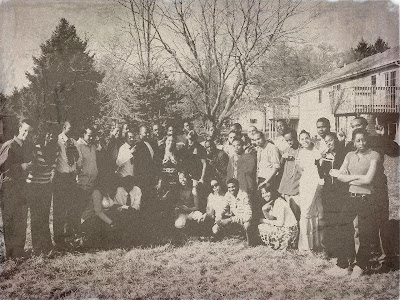
If you don't have photoshop skills(even if you do), making a photo look old is not necessarily easy nor quick. That's not a problem anymore thanks to The Wanokoto Labs website. You can either upload an image to the site from your computer or point it to an image URL online, then just click Convert. After a few seconds, you get an old-school style version of the picture(just like the one I used above). To save your new image, right click on it and select "save image as..." and you can download it right to your computer. Voila!!


UPDATE!! You can also check the original picture I used if you click on the thumbnail above.


The Wanokoto Labs [taken from lifehacker]


Part 3 & 4 of the Aurora Video

Looks like the complete series is out and awaiting your approval. I don't like how the interface is so crowded, but the overall idea is neat. Go check out the vids over at lifehacker.


Part 2 of the Aurora Video

The guys over at Mozilla Labs aren't wasting time. Part 2 is out and is quite impressive. The video might actually lag since everyone is trying to watch it so give it a little time. I think that a lot of the functionality mentioned there is around right now, just not as nice.

Update:
I replaced the actual video with this link to it(the video was slowing things down around here).


Moving Towards a Better Use of Gmail [part 1]

I have plenty of friends on gmail but most of them know nothing when it comes to gmail's feature-rich and powerful interface. So I will attempt, once or twice a week, to change that horrible fact. If you don't have a gmail account yet, please go get one right now!

I will be gathering my information from personal experiences, various articles and such found on the web (there's plenty). If something does not work, just leave a comment and we well try to figure it out together. If you know about a cool trick and want to share it, don't be affraid to leave a comment or an email.

Part 1: Navigation
Navigating through gmail is pretty easy with a mouse. But did you know that it is not only easy, but also faster with the keyboard?
Don't take my word for it though. Try it out for yourself and let me know.

To turn the shortcuts on:
Goto your settings tab in gmail, then locate keyboard shortcuts. Turn them on, go to the bottom of the page and hit save.

I have an embedded list of gmail shortcuts for you down below. Print it or Save it and try out a few things. Click here for a direct link to the document.


Let me know how it works for you.


My favorite Linux Commercial(for the moment)

I just had to share this one...


Aurora: The Future of the Web?

Ever wonder what the web will look like years from now?
Jesse James Garrett (the guy who coined the term AJAX) designed and narrated part one of a video series demonstrating what the future of the web might look like.Check the video out below and let me know what you think.


Aurora (Part 1) from Adaptive Path on Vimeo.