The next Social Networking Service you Should consider Using: Cliqset
0
comments |
This entry was posted on Tuesday, October 20, 2009
Most of us are getting tired of all the new "social networking" services that keep popping up out of nowhere. "I dont want to sign up for another thing!", "Doesnt Facebook do that already?", "I really dont get
twitter..." are some of the many responses I get when I speak to people about joining other services. I admit that, in the past, I pretty much felt the same way: You had to fill out all these forms, make up another password that you were going to have to try to remember, start your "friends list" from scratch, and try to remind yourself to visit the site all the time until it became a habit.
Hulu Desktop is now on Linux!!
0
comments |
This entry was posted on Saturday, October 10, 2009
This is not great news for most, but for all the linux users out there this is wonderful! Hulu Desktop is now on linux. Check out the lifehacker article or go directly to the download page. I know I've been waiting for this since they stopped supporting Boxee, no more browser viewing now I'm back to the full screen experience! YaY!!!
By the way, If anyone from Hulu reads this, you should really bring back the Boxee support. Thanx
A Comeback Is Brewing
0
comments |
This entry was posted on Monday, October 5, 2009
I am coming back folks. I took a long break but its time to come back. Too many things going in the Tech world to keep me quiet. I am trying out a new layout, make sure to let me know what you guys think. And if you want send me emails about anything you need me to talk about or explain. I will be covering Google Wave
My list of Ubiquity Commands
0
comments |
This entry was posted on Thursday, January 15, 2009
If you don't know what ubiquity is, check out my previous post here. I've been using ubiquity since August and I don't think I'll ever use a browser without it.
Here is the list of Commands I recommend(there's a ton of other commands found at the herd, if you can think of one I didn't list, feel free to comment. If you would like to see one that doesn't exist, submit a suggestion over at mozilla labs or leave a comment here and I'll try to whip it up for you/or get help):
- add-to-calendar Adds an event to your calendar(it only works with google calendar at the moment, no problem since thats what I use)
Let me Google that for You
4
comments |
This entry was posted on Tuesday, January 13, 2009
I don't know about you guys, but I always get these 2 minute calls from friends or relatives asking me the most random/pointless questions for which a simple google search could have gotten them a satisfactory answer. And this normally pisses me off but, what can you do, I open a google search and I give them the answer and hang up. This genius, coderifous, felt the same way I did and came up with this brilliant site called: let me google that for you.
I am dying right now! I can't wait to use it on someone!
To understand what the site does: Just imagine you called me and asked me where to go to download AVG. I would then goto the site, type in AVG and it would fabricate a link for me that I could send to you.
Here is the link you would get(make sure to click on the link to understand what happens).
I am dying right now! I can't wait to use it on someone!
Google Calendar Tips and Tricks
6
comments |
This entry was posted on Wednesday, January 7, 2009
I found out, after last week's post, that many of my gmail friends don't even know about goggle calendar. So here I am to bring them a little information on a great product. GC(google calendar) is an awesome tool given to you free of charge. It is especially designed for people like me, who cannot remember jack. If you have a gmail account or any account with google, you automatically have access to your own calendar. You can add events, share calendars between friends/groups/co-workers/etc. . You can even search for public calendars to add to your own.
You can setup GC to send you an email or even an SMS to remind you of anything you have on your calendar. The best for me is the "Daily Agenda" feature. I get all my reminders for the day bunched up together in one email everyday at 7AM. What more do you need?
If you've never given GC a try, or you have but never really checked all it's features, try it out sometime this weekend. I don't think you will be disappointed. Send me an email or comment if you are having trouble with your calendar setup. And don't forget to subscribe to the blog if you like the content. Thanx
For example: I love the UEFA Champions League. But I always found myself missing alot of games because football is not a big deal in the US(the games aren't advertised on TV or anything). Some time last year, I added a Champions League public calendar that I found and I have never missed a game ever since.
Go Barça!!!!
I also add public calendars of my favorite TV shows that way I dont have to search through the net to find out when they start or end.
You can setup GC to send you an email or even an SMS to remind you of anything you have on your calendar. The best for me is the "Daily Agenda" feature. I get all my reminders for the day bunched up together in one email everyday at 7AM. What more do you need?
If you've never given GC a try, or you have but never really checked all it's features, try it out sometime this weekend. I don't think you will be disappointed. Send me an email or comment if you are having trouble with your calendar setup. And don't forget to subscribe to the blog if you like the content. Thanx
Add your Facebook Events and Birthdays to Google Calendar
13
comments |
This entry was posted on Friday, January 2, 2009
Happy New Year everyone!
During this time of the year, everyone normally makes resolutions and tries to organize their life more. So I'm here to help with a little calendar optimization(if you don't already use a calendar shame on you). I love facebook's birthday reminders but since I don't log on everyday, sometimes I miss some of my friends birthdays. The people over at fbcal thought the same way I did so they made an application to remedy the situation. With fbcal you can add your friends birthdays and even your facebook events to a calendar of your choice(they support almost all of them).
To set it up with google calender goto fbcal and follow their guideline. When you get to the last step click on the google calendar button. You will then be redirected to your google calendar. You will be asked to add the calendar(click to add) and you are all set. You can go and change the color of the feed and you can even set it up to email you reminders everyday. For more google calendar tricks and tips, come back next week or subscribe to the blog. Don't forget to leave questions and/or comments.
During this time of the year, everyone normally makes resolutions and tries to organize their life more. So I'm here to help with a little calendar optimization(if you don't already use a calendar shame on you). I love facebook's birthday reminders but since I don't log on everyday, sometimes I miss some of my friends birthdays. The people over at fbcal thought the same way I did so they made an application to remedy the situation. With fbcal you can add your friends birthdays and even your facebook events to a calendar of your choice(they support almost all of them).
To set it up with google calender goto fbcal and follow their guideline. When you get to the last step click on the google calendar button. You will then be redirected to your google calendar. You will be asked to add the calendar(click to add) and you are all set. You can go and change the color of the feed and you can even set it up to email you reminders everyday. For more google calendar tricks and tips, come back next week or subscribe to the blog. Don't forget to leave questions and/or comments.
Pardon the Dust
2
comments |
This entry was posted on Thursday, December 4, 2008
I have not posted in a while and will not be posting again until the new year. I wanted to let you guys know that I have not forgotten nor dropped my blog. I will be back in full force next year but until then I will leave you with a few updates.
Update 1: Boxee
I have blogged a few times about Boxee and they have grown tremendously since. From big investments to Netflix support, the people over at Boxee have been working overtime to bring us the best tv/entertainment experience out there. If you have not given the app a try, do so now. I still have beta invites so email me if you need one. If my word is not enough, give this article a read: It's Living Room 2.0.
Update 2: Backblaze
Backblaze offers unlimited backup just like Mozy and others with an extra touch. Instead of having to pick what you want to backup(you can still do that), at $5 a month you get unlimited space and the software backs up only the data you need, ignoring unnecessary files like operating system files, applications, and temporary files.
Update 3: Have a wonderful Holiday
I wish you all a Merry Christmas and a Happy New Year!
Update 1: Boxee
I have blogged a few times about Boxee and they have grown tremendously since. From big investments to Netflix support, the people over at Boxee have been working overtime to bring us the best tv/entertainment experience out there. If you have not given the app a try, do so now. I still have beta invites so email me if you need one. If my word is not enough, give this article a read: It's Living Room 2.0.
Update 2: Backblaze
Backblaze offers unlimited backup just like Mozy and others with an extra touch. Instead of having to pick what you want to backup(you can still do that), at $5 a month you get unlimited space and the software backs up only the data you need, ignoring unnecessary files like operating system files, applications, and temporary files.
Update 3: Have a wonderful Holiday
I wish you all a Merry Christmas and a Happy New Year!
Help the fight against Poverty by getting rid of your old PC
0
comments |
This entry was posted on Wednesday, October 15, 2008
It's Blog Action Day and the theme this year is poverty. I was born and raised in Haiti, so the topic is not new to me. Everyone can and should help fight against poverty and here is an easy way to start: Donate your old computer.
I know most of you have an old Desktop PC or even a laptop just gathering dust somewhere in your house. Get rid of it! It's for a good cause. This computer your giving away can help educate a child or keep a father informed with the internet. There are many organizations up in running that provide this service and they have been waiting for that old computer of yours.
I have setup a list of websites that point you in the right direction, if you know of a better website let me know in the comments or an email so that I can update the list.
http://www.cristina.org/
http://www.computerswithcauses.org/
http://sharetechnology.org/np-reuse.html
http://www.freebyte.com/free_computers/
Fight against Poverty!!
I know most of you have an old Desktop PC or even a laptop just gathering dust somewhere in your house. Get rid of it! It's for a good cause. This computer your giving away can help educate a child or keep a father informed with the internet. There are many organizations up in running that provide this service and they have been waiting for that old computer of yours.
I have setup a list of websites that point you in the right direction, if you know of a better website let me know in the comments or an email so that I can update the list.
http://www.cristina.org/
http://www.computerswithcauses.org/
http://sharetechnology.org/np-reuse.html
http://www.freebyte.com/free_computers/
Fight against Poverty!!
Share files from within Facebook with Drop.io
0
comments |
This entry was posted on Monday, September 15, 2008
Drop.io, one of the simplest ways to share files online, has released a Facebook app that allows you to share files from within the site. With this you will be able to quickly and privately share pics, vids, music, and docs from within the social network. Head over to drop.io/facebook to read more about it and let me know what you think.
Firefox Extensions I cannot live Without
2
comments |
This entry was posted on Thursday, September 11, 2008
A little over a week ago Google released their browser named Chrome. I love Google and all but I didn't like the idea of a browser. I just think that having their own browser means that other browsers are going to lack Google support eventually. Having a new product to develop means there will be some slacking with their other products. And, that's one more browser entering the unnecessary Browser Wars. Since everyone has been blogging about Chrome ever since the release, I decided to talk about Firefox instead. Here is the list of Firefox Extensions I cannot live without:
- StumbleUpon Discovers web sites based on your interests. I had no idea how HUGE the web was untill I installed this extension and started playing with it. Just sign up, fill in the information about what your interested about, install the extension and start Stumbling!
- ReaditLater Whenever you land/Stumble on a page that you want to read but might not neccesarily want to bookmark, add it to your readitlater list. If you use more than one computer, this extension can be installed on each of them and will keep the list current accross your computers.
- Foxmarks Again if you use many machines, foxmarks will keep your bookmarks synchronised accross all of them seamlessly. You can even access your bookmarks online if you are on a lab computer or something similar.
- DownThemAll Ever been on a page with 20 pictures that you wanted to download? Instead of going through each of them one by one, just DownThemAll!
- Cooliris Formerly known as Piclens, this extension makes browsing(pics and vids) a wonderful 3D experience. Check it out, trust me, you will never look at Facebook pictures the same way again!
Moving Towards a Better Use of Gmail [part3]
0
comments |
This entry was posted on Thursday, September 4, 2008
By now, you guys should have mastered some keyboard shortcuts. Some of you probably created a few filters and labels(I doubt it). Today I was setting up a few things for my upcoming trip to Boston(Celtics and Patriots pride baby!!!) and I remembered a very important gmail feature that most of you probably don't know about: the Vacation Responder.
I also wanted to talk about the search bar today. I was helping a lady out the other day with an attachment she was trying to send out. She was looking for an old email but instead of searching for it through gmail's search form, she was going page by page looking for something sent to her last year!
I stopped her and asked:
Im guessing that most of you are in the same boat so I am going over a few examples:
When you are going on vacation and will not be accessing your email, you don't need a secretary to reply to them, you need vacation responder.To create a vacation responder, click on “Settings” at the very top of the page on the right-hand side. Scroll down until you see the section entitled “Vacation responder”. Click on “Vacation responder on”. Next, type a custom message in the boxes provided to let others know that you are away on vacation. In your message, you may want to include when you will be back so they can get a better idea of when they can expect a response from you. Then click "Save Changes" at the bottom of the page.Now you can go away and not have to worry about that Employer trying to reach you for a position, or that client that needs your help ASAP.
I also wanted to talk about the search bar today. I was helping a lady out the other day with an attachment she was trying to send out. She was looking for an old email but instead of searching for it through gmail's search form, she was going page by page looking for something sent to her last year!
I stopped her and asked:
"You know that you can search for an email by typing some of it's credentials in the search form right?"She looked at me like I was speaking Portuguese and said no.
Im guessing that most of you are in the same boat so I am going over a few examples:
- Let's say you get messages from john on a regular but your looking for a specific message that has a recipe in it. Goto the search bar and enter: "from: john has: recipe"
- You need an email that you recieved between february and march 2007. Goto the search bar enter: "after:2007/02/01 before:2007/03/01"
- You can get an email by just typing one of the words that were in the email. You're looking for the message you got that contains your insurance information. Just type "insurance" in the search bar and you will get a list of messages that match the criteria.
- You can even pulll up all the emails from a specific email address. Just type "from: jojo55447@gmail.com" and you will get all the emails you've ever recieved from him.
Ubiquity: New Web Tool that Makes Sense
0
comments |
This entry was posted on Wednesday, August 27, 2008
The guys over at mozilla labs are at it again. They have just released a prototype of Ubiquity, a Firefox extension that allows you to perform tasks using various web services without having to leave the page your on.
Ubiquity for Firefox from Aza Raskin on Vimeo.
Scenario:Now let's see how this gets done using Ubiquity:
You are writing an email to a friend to give him directions to a place. Normally you would have to open another page, map the address on a map site, copy the link and then return to your email page and paste it. But he stills has to open your email, click the link which will open another page, and then finally see the directions.
Ubiquity for Firefox from Aza Raskin on Vimeo.
Must-Have Windows Mobile Apps List
1 comments |
This entry was posted on Tuesday, August 26, 2008
If you own a Windows Mobile Device you have to check lifehacker's article. There is no way you won't find something in there. Make sure you read the comments, they have more sites and apps too!
Boxee Just Released a New Version of the Alpha
0
comments |
This entry was posted on
If you've been trying out Boxee, this is news for you. The new release has a HUGE list of new stuff and bug fixes. I've been running Boxee for a few weeks now and I have to say: "Pretty Nice!".
Check it out, if you need an invite I still have some. For more info, head over to the boxee blog or read lifehacker's article on this bad boy.
Come Join me for Blog Action Day
2
comments |
This entry was posted on Saturday, August 23, 2008
Blog Action Day 2008 Poverty from Blog Action Day on Vimeo.
I will be participating in Blog Action Day on October 15th, which focuses on the issue of poverty this year. If you guys have any ideas about what I should write, leave me a comment or email. I want to also encourage my fellow bloggers to participate in this event, it's for a good cause.
How to Add Your Miro Content to Boxee
0
comments |
This entry was posted on Wednesday, August 13, 2008
If you use Miro as your TiVo for Internet Video and the previously mentioned Boxee, read on.
I have Miro installed on my Mac Mini and I've been using it for a while now. Miro has a lot of video content and the coolest factor(for me) is that you can create dynamic, keyword-based channels. For example: I have a YouTube channel with the keywords: fc barcelona, football, soccer. I can navigate to that channel and download the videos that I wish to watch. The cool part is that from the moment the channel is set, Miro will automatically download new uploaded videos that match my keywords. I can watch them, delete them or let Miro delete them after a "user-defined" amount of days.
Anyways, I got Boxee setup like two weeks ago on my linux-based laptop and I'm in love. I realized that there was no need to watch my vids on Miro anymore if I was able to get Boxee to grab them. This is obviously easier if your Miro setup is on the same machine as your Boxee. But if it isn't, this is what you do:
I have Miro installed on my Mac Mini and I've been using it for a while now. Miro has a lot of video content and the coolest factor(for me) is that you can create dynamic, keyword-based channels. For example: I have a YouTube channel with the keywords: fc barcelona, football, soccer. I can navigate to that channel and download the videos that I wish to watch. The cool part is that from the moment the channel is set, Miro will automatically download new uploaded videos that match my keywords. I can watch them, delete them or let Miro delete them after a "user-defined" amount of days.
Anyways, I got Boxee setup like two weeks ago on my linux-based laptop and I'm in love. I realized that there was no need to watch my vids on Miro anymore if I was able to get Boxee to grab them. This is obviously easier if your Miro setup is on the same machine as your Boxee. But if it isn't, this is what you do:
Make sure the computer running Miro has sharing enabled.
Make sure the folder with the Miro content is being shared.
In Boxee: Goto Video-->My Videos-->Network Sources-->Add New Source
If your machine is not listed, then enter the ip address manually. Make sure you specify username and password if that's needed to access your shares. Once you are able to get in, select the appropriate folder, name it and select update.
Here is what the process will look like in Boxee:
Moving Towards a Better Use of Gmail [part2]
1 comments |
This entry was posted on Tuesday, August 12, 2008
Im back, as promised, and this time I will teach you about Filters and Labels. I also want to remind everyone that this is not the only way of setting these things up. If you need or have a different approach, you can leave a comment or link for the readers. The screenshots are a little small so if you really want to see what is going on, you can click on them and you will be directed to the full screen version.
I am going to use a sample mailbox that I've setup a while ago to catch my spam and random subscriptions. Here is what it looks like before we start:

Now I want to add a label to all the messages from TechRepublic.
1 You have to manually pick the emails you want labeled.
2 You would have to repeat the process every time you get new email.
If this is fine for what you want to do, so be it. For anyone else who thinks this would not be the best setup, I present to you: Filters.
Filters can do a whole lot more than just selecting your messages and labeling them. You can set filters to forward your filtered email, to delete them, to mark them as unread, to star them, to archive them and even arrange that they are never sent to your spam folder.
Ok so let's create a filter that will:

Next we set the criteria. I entered kayak.com both in the From field and in the Has the words field. Then I clicked on Test Search to see which messages would have been filtered using my criteria.

If the results aren't picking up everything you want, try to add more criteria. When you are satisfied with the results, you can click Next Step.
Next we decide what to do with our filtered messages.
As you will see in the image below, I chose:

Then I click on Create filter and my filter has been created. The screen that follows allows you to edit, delete, or create new filters. You can access that page anytime by clicking on the settings link in the top right corner, then selecting the filters tab.
If you guys have any questions or comments just leave me a note. If you need to email me, my email is raphsabb+blog [at] gmail. See you next time.
I am going to use a sample mailbox that I've setup a while ago to catch my spam and random subscriptions. Here is what it looks like before we start:
Now I want to add a label to all the messages from TechRepublic.
Unfortunately there are a few limitations to this method:-First I select the messages that I want to label( I end up missing some but I'm just using it as an example so don't freak out)-Then I create a label by clicking on the More Actions drop down menu and choosing New Label. Click here for the video demonstration.
1 You have to manually pick the emails you want labeled.
2 You would have to repeat the process every time you get new email.
If this is fine for what you want to do, so be it. For anyone else who thinks this would not be the best setup, I present to you: Filters.
Filters can do a whole lot more than just selecting your messages and labeling them. You can set filters to forward your filtered email, to delete them, to mark them as unread, to star them, to archive them and even arrange that they are never sent to your spam folder.
Ok so let's create a filter that will:
-Label messages from kayak.comClick on the Create a filter link next to the Search the web button:
-Skip the inbox(only applies to future messages). That way I don't have to see them when I login. And I can click on the Kayak label anytime I feel like checking flight discounts instead.
Next we set the criteria. I entered kayak.com both in the From field and in the Has the words field. Then I clicked on Test Search to see which messages would have been filtered using my criteria.
If the results aren't picking up everything you want, try to add more criteria. When you are satisfied with the results, you can click Next Step.
Next we decide what to do with our filtered messages.
As you will see in the image below, I chose:
- Skip the Inbox (this only applies to future messages)
- Apply the Label (Kayak, you can actually create a label right from the drop down menu)
- Apply filter to the 33 conversations below(to make sure the previous messages get labeled too)
Then I click on Create filter and my filter has been created. The screen that follows allows you to edit, delete, or create new filters. You can access that page anytime by clicking on the settings link in the top right corner, then selecting the filters tab.
If you guys have any questions or comments just leave me a note. If you need to email me, my email is raphsabb+blog [at] gmail. See you next time.
Quick and Easy Way To Make Your Photo's Look Ancient
2
comments |
This entry was posted on Sunday, August 10, 2008

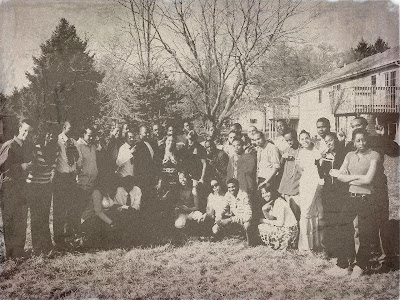
If you don't have photoshop skills(even if you do), making a photo look old is not necessarily easy nor quick. That's not a problem anymore thanks to The Wanokoto Labs website. You can either upload an image to the site from your computer or point it to an image URL online, then just click Convert. After a few seconds, you get an old-school style version of the picture(just like the one I used above). To save your new image, right click on it and select "save image as..." and you can download it right to your computer. Voila!!
UPDATE!! You can also check the original picture I used if you click on the thumbnail above.
The Wanokoto Labs [taken from lifehacker]
Part 3 & 4 of the Aurora Video
0
comments |
This entry was posted on Saturday, August 9, 2008
Looks like the complete series is out and awaiting your approval. I don't like how the interface is so crowded, but the overall idea is neat. Go check out the vids over at lifehacker.